
There are lots of benefits to using GoodNotes as a digital planner. One of those is using digital stickers. Unlike regular stickers they’re easy to use, can be reused over and over, and you can move them around on the page as needed.
However, adding them to GoodNotes can be tiresome. There is a better way than adding them one by one using the image tool. Here’s how you can add digital planner stickers to GoodNotes 5 quickly and easily.
This post contains affiliate links. If you make a purchase through my links, I may earn a commission at no extra cost to you. Read my full disclosure here.

Adding Digital Stickers from a ZIP file
There are lots of places where you can purchase a set of digital stickers to use in your planner as and when you want. These stickers come in a PNG or PDF format, typically.
These formats are good because all stickers will have a transparent background. As such, they’ll go into your digital planner without any background overlap, making them easy to use.
This is typically seen as the easiest way to create stickers for your planner. Download the sticker set you want, then unzip the file on your iPad. You’ll see there are a lot of individual files, and each one should be one sticker from the set.
How to import digital stickers into Goodnotes
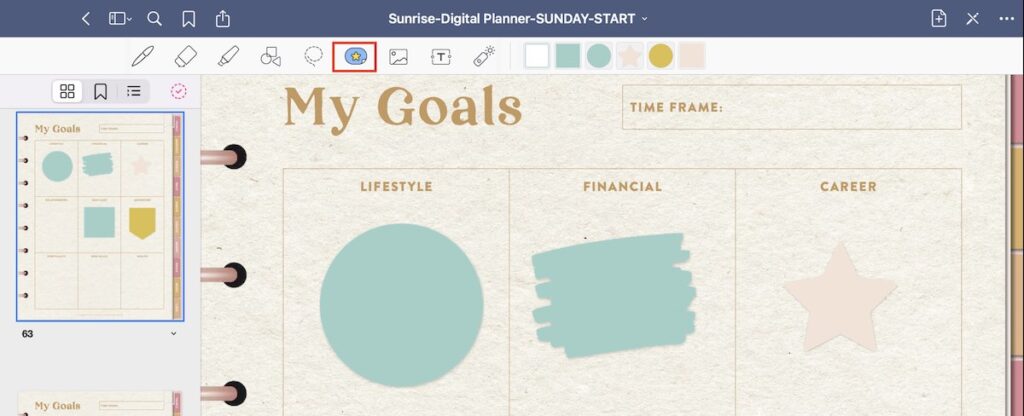
Now, you’re ready to import. Tap the ‘elements’ button from the top menu in GoodNotes. It’s a blue sticker with a yellow star on top.
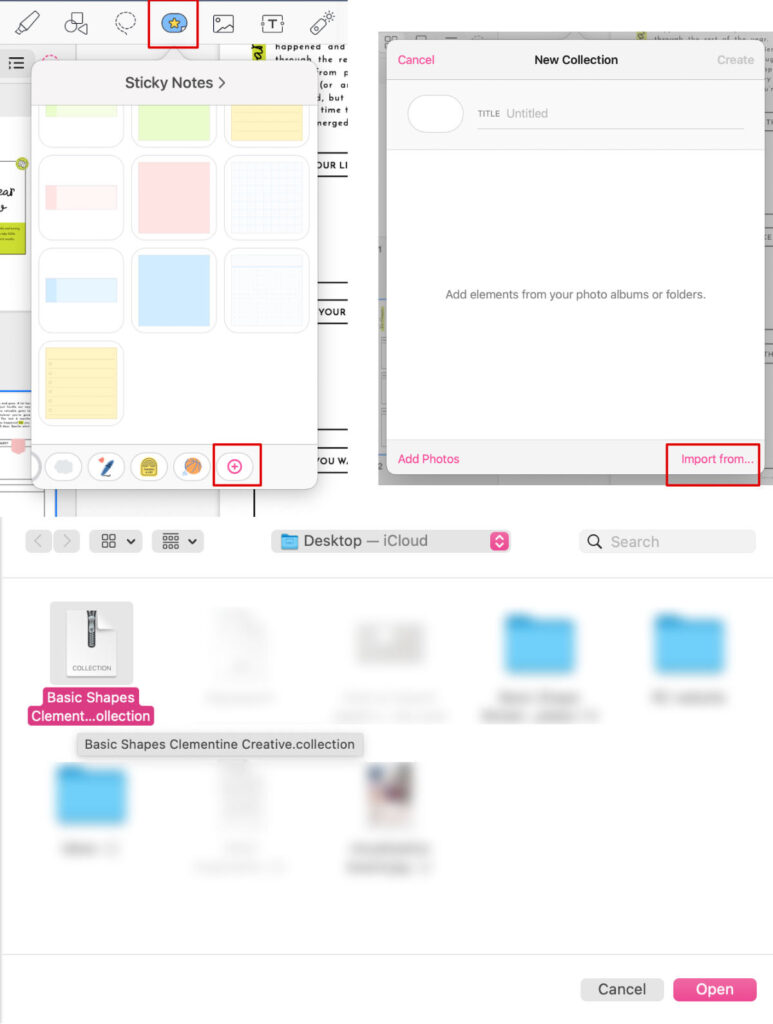
You’ll get a pop-up menu, and this allows you to use a sticker file from the most recently saved files, or import new stickers.
Tap on the red plus icon to import new stickers.

You’ll get a pop-up prompting you to enter a name for your new sticker collection. Type in a name and then click on Import from…
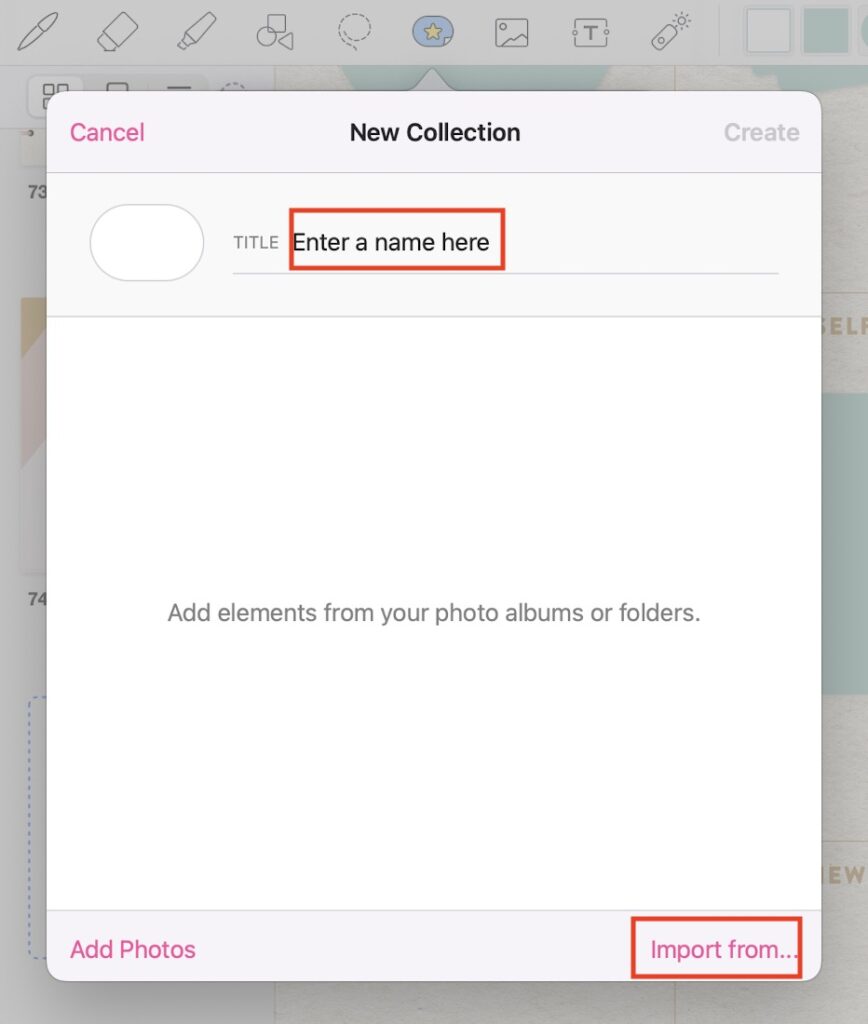
When you tap “import from” you can choose the location where you saved the digital sticker files. This is usually in your Downloads folder on your iPad.
Now you have to add each sticker one at a time. When you’re done selecting the stickers you want, tap on Done.
If you need to add a lot of stickers, this method will be too time-consuming. What you can do instead is you can go into split screen mode and drag the stickers from your Files app to your Goodnotes app.

When you’ve added all the stickers you want, click on Done.

You can also watch this video to see how to import digital stickers into Goodnotes:
Inserting Element Collections in Goodnotes
If the digital sticker files you purchased came with a collection file, then that’s easy peasy! This allows you to bulk insert a lot of stickers all at once. You can ignore the steps above and do the following:
- Tap on the ‘elements’ icon
- Tap on the red plus icon
- Tap on ‘Import from…’
- Then you can import a collections file. It will have a filename ending in .collection.
- All of the stickers will be imported all at once!
How to resize stickers in Goodnotes
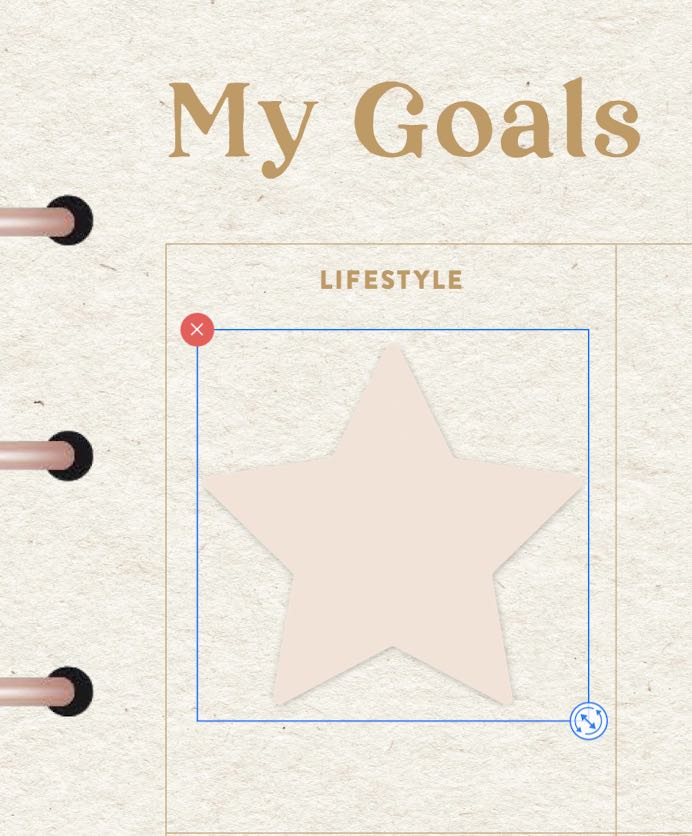
Now you can place stickers where you want. All good sticker images should be able to scale up and down as needed, so you can make it the right size without any loss of quality.
You can do this by tapping and holding the bottom right corner of the image, and dragging it until it’s the size you want. Then, just move it to where it needs to be on the page, and you’re done.
Cropping Your Own Stickers in Goodnotes
Do you want to use a different image as a planner sticker? The joy of digital planners is that you can make that happen. You can easily crop your own images and make stickers that way. Here’s how.
Save the image you want to use to your iPad. This can be any image, from a sticker sheet set to any image that strikes your fancy.
You really can use any image you want. That gives you a lot of flexibility, so you can use your planner in any way you want.
Open your GoodNotes app, and then select the ‘picture’ icon. If the image was just downloaded you’ll find it in your recent images, otherwise, you’ll need to find it in your folders.
Once you’ve found the image you want, place it on the page and then select it. You’ll be given two options: ‘Cut’ and ‘Crop’. It’s ‘Crop’ that you want to select.
Move the cursor to surround the image you want as a sticker, and then click ‘Done’. You’ll then have a sticker that you can adjust to the desired size on the page.


Where to get free digital stickers for Goodnotes?
Click here to download a free set of basic shapes digital stickers. There are 16 different stickers in 6 different colours. You can use them in Goodnotes, Notability, or Noteshelf. A Goodnotes collection file is included!
Taking it further
Now that you’ve found a few different stickers that you like to use in your planner, you can take it one step further and create your own virtual sticker book in the app.
To do this, you simply add the desired stickers to a separate notebook in GoodNotes. You can sort them into most used, or by theme, color, or anything else that suits your own needs. That makes it very easy to find those stickers again when you need them.
You can also keep them arranged in separate folders on your iPad. That allows you to easily find the stickers you want when you open up the ‘pictures’ menu. Whichever way you choose to organise your stickers, it’ll be much easier and quicker to add them to the page when you need them.
This post was contributed by Jenny Williams. Jenny Williams is a business analyst and writer, working with Speech writing service and Essay writing services UK. She also creates content for the Gum Essays service blog.
Digital Planning Tutorials
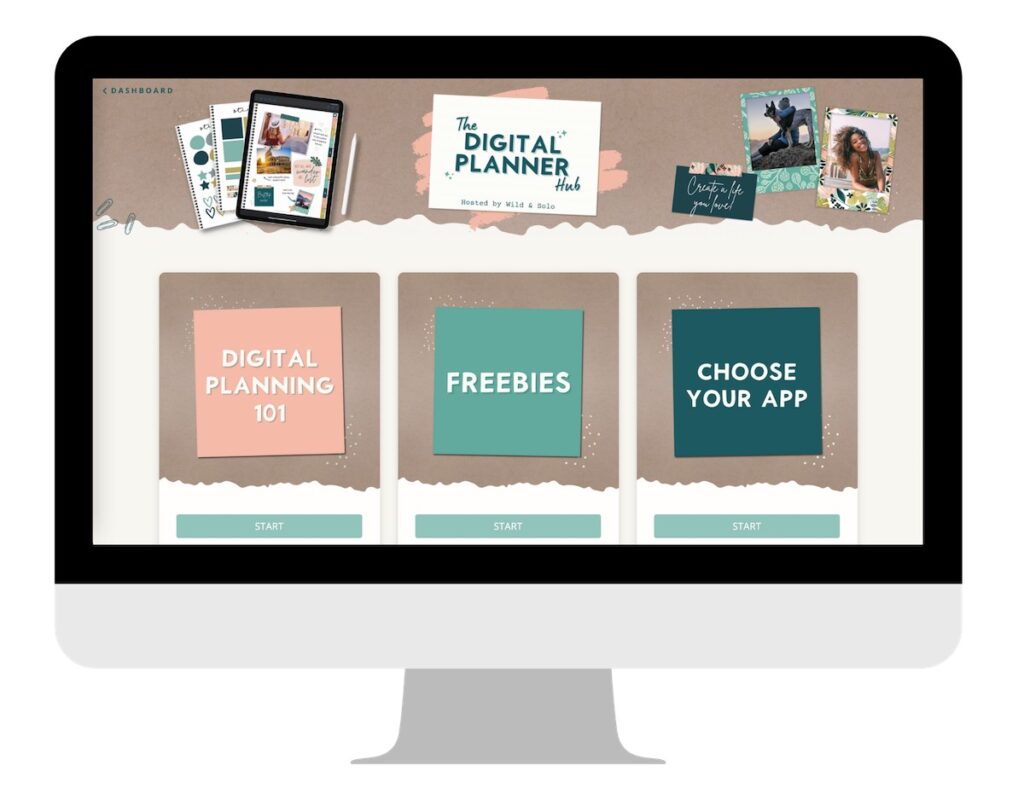
Are you looking for more tutorials on using Goodnotes and Noteshelf? Check out my friend Michelle’s Digital Planner Hub where she shares free tutorials on how to use digital planning apps.
Learn to Create your own Digital Planner Stickers
Do you want to create and sell your own digital stickers in your Etsy shop, but don’t have drawing skills? Michelle has an awesome course teaching you how to make and sell your own digital planner stickers.
She teaches you how to create a range of digital stickers without the need to be an artist. I took the course myself and highly recommend it! Check it out here.

Related posts:
What is a digital planner and how to use it
Review of The Digital Planner Template Kit
The Best Digital Planners for iPad
Free digital notebook


