
An easy way to spice up your blog design is with pretty graphics! I have designed a set of cute blog graphics with a watercolour effect that will look great on a creative/crafty type of blog.

Click the button below to download this free blog graphics set:

What’s Included
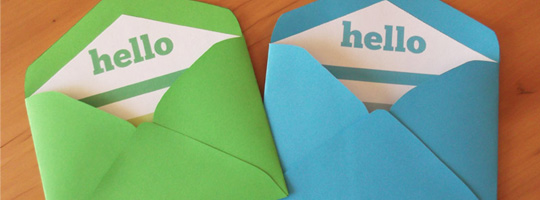
This set contains the following graphics: hello, welcome, facebook, twitter, pinterest, google+, instagram, search, subscribe, contact, archives, categories. You can use these in your sidebar.
Then there are some dividers or lines – dotted and stripes and then a “share this post” banner that you can place at the bottom of your posts, plus two arrows (from my free arrow Photoshop brush set).
Where to Use These
I also made a sample blog layout to give you some ideas of how you can use these graphics:

The sidebar graphics are 300px wide and the longer graphics are 700px.
Click the button below to download this free blog graphics set:
Please send me the link to your blog if you use it! I’d love to see how you’ve used it.



Hello Carmia,
Great work and thanks for sharing this package. Plus I totally love your website. I had trouble downloading the package. Could you please email them to me? Thanks a lot
Hi Omo. I’ve just sent you an email 🙂
so pretty! Might have to use in the future 🙂 *Pinning*
Thanks so much, Trine!
Hi. First thanks for this freebie. I could download the file but do not know how to use it in my blog.
Can you help me?
Hi Ana, what blog platform are you using?
I have never used custom photos/buttons like this before either, but I would love to try them out on my blog as well! I’m using WordPress 🙂
They will look great on your blog, Audrey! Let me know if you need any help.
Love those! Thanks so much! Awesome site too!
My pleasure, thank you Jennifer 🙂
I love these, beautiful! Will they work on wordpress.com (free blog) sites?
Hi Kat, yes they will – check out this post: http://en.support.wordpress.com/add-social-media-buttons-to-your-sidebar-or-footer/
Great work. Thanks for sharing this:)
Thanks Jeanette!
Hey, very pretty. Trying to use them actually. Wondering how to get them in the sidebar without putting a “title” in the box. I clicked add gadget and then add photo with a link but it requires a title. If you look at my blog I left the Facebook one up, just to see…should I be using a different ‘gadget’?
Hi Tonya, thanks for downloading 🙂 I think you need to add an HTML gadget instead of a photo gadget. See this video: http://www.youtube.com/watch?v=KhdKG4u4pT0
So sweet of you Carmia to share such pretty watercolor blog graphics. Thanks so much and will be adding them to my blog soon. I have been wanting to make some changes.
I will be looking out for it, Laine 🙂
Kind of funny that the social media icons you use are totally different. 🙂
I have a long sidebar so I wanted my icons to take up less space 🙂
They are so beautiful! thanks! hope it will be easy to install on wordpress.
Thank you, Nuccia! If you have trouble, check out this post: http://en.support.wordpress.com/add-social-media-buttons-to-your-sidebar-or-footer/
hi Carmia
very pretty.
thanks for them..
rgds
abraham
My pleasure, Abraham.
Thank you!! I just added them to my website! http://www.emilykuphoto.com/
It looks great, Emily! Amazing photos too 🙂
How wonderful for you to share these, Carmia! I pinned and shared with my blogger communities, they are lovely!
Aw, thanks so much, Delia!
Thank you so much! I am just starting out-so glad I found them and you are willing to share. The images are adorable.
http://www.cookinglikelou.com/
It looks awesome on your blog, Marisa! Thanks for commenting 🙂
Hi Carmia
I love your watercolour blog graphics, theyre so pretty! Thanks for sharing these -ive just added the “hello” graphic to my blog. Check it out at mypetitcanard.wordpress.com
Thanks!
Emily
Thanks, Emily! It looks great on your blog!
will this work for wordpress or any blog.This is very cute
Yes, Sabrina it will work on any blog. There are many tutorials online and at the bottom of my post you will see a link to one.
these are such lovely graphics, i’ve used them on my blog and love them! xxx
i was wondering if you have one of the beige banners for FAQ’s as that would be really useful.
thankyou!
Hi Molly. Love the photos on your blog, and the graphics look great too! I’ve now included an FAQs banner in the package too; just download it again.
I absolutely love this set! One of my close friends has a portfolio online and we added in the bright pink Hello! sign the contacts. It brings a wonderful unexpected pop to the otherwise boring page. Thank you so much for your awesome work and freebies. If you have any problems with us using your creation on her site, I will take it down. I understand completely. Thanks again!
Hi Sophia,
No problem at all! I love seeing how people use it. It looks fabulous on the contact page. Thank you for commenting here!
Thank you! I’m using them here: http://designbunnies.com
Thanks for the comment. They look great, Katrina!
Hi Carmia!
Thank you so much for these. They are just lovely! Plus you used all my favourite colours. I hope to get them up on my blog today or by the end of the week.
Which font did you use for the text? I’d love to use the same one in my header (and perhaps post titles) to keep it all matching. Thanks!
<3 Erin
Hi Erin, that is so great to hear! The font I used is called NeoRetroDraw and you can download it for free from Font Squirrel 🙂
Thanks again, Carmia! Be well!
<3 Erin
Thank you so much for sharing. I am so much in love with them, going to use them on my blog 🙂 Will be pinning and sharing 🙂
So glad you found this roundup useful, Roopini!
Oh my goodness! I love these. Thank you so much for sharing and making the blogosphere a prettier place! I’ve added a few graphics to my sidebar and “about” page. Will soon be adding more! Found you through the link on SITS girls :-).
So glad you like these, Heidi. Hope you enjoy using them!
Hi – thank you so much for creating these. Could you provide which font you used for the images?
Thank you!
Hi Lauren! The font I used is called NeoRetroDraw and you can download it for free from Font Squirrel.
Thank you so much for sharing these! I’ve used a bunch on my blog and I am loving them! http://asimplespoon.wordpress.com/
You’re welcome, Alexis! Hope you enjoy using them on your blog.
Hi there! I am very new to blogging and website design and just stumbled across your site and images. Thank you for posting and I look forward to networking with you again!
Alyssa
Hi there, thank you for the graphics!! I am a brand new blogger and this has been so helpful. I will likely use the arrows on my page!! Thank you!!
Hi Sarah, that’ wonderful! Thanks for commenting 🙂
This is great! Thanks for sharing these for free!
You’re welcome, Jodee!
These are great, but how do I use them? I have no idea how to install these, and can’t Google search them because I don’t even know what to call them! I’m a hopeless blogger 🙂
Hey Erin,
Haha, don’t worry, you’ll figure it out along the way. I also didn’t know this when I started out on Blogger a few years ago. You would want to search for “how to add clickable buttons to blogger” / “how to add buttons to blogger sidebar”. I found a video that will help! See it here: https://www.youtube.com/watch?v=H4hI5WmqpBw
Thank you a gazillion times over! I’m working on updating my lil blog, and these are perfect!
You’re welcome, Sylvie. Have fun updating your blog!
OMG! Thank you so much! 🙂 I just downloaded these and I’m going to use them on my website. So excited 🙂
Yay, have fun, Ena!
Love it! Used a few in my blog! Thank you! 🙂
It works so well on your blog, Megan!
Thank you so much! They are beautiful♥
Glad you like them, Lotte!
These are just lovely! Well done Carmia! Do you mind if I share them on my blog? I’m working on some blogging tips for my next blog post and would love to share these with my readers 🙂 x
I would be honoured if you shared them on your blog, thank you, Roxy! xx
Thanks for sharing your beautiful headers. I’ve downloaded to have a play around with on my site. Visiting from @thesitsgirls.
You’re welcome, Jane. Have fun!
This is late, but I just found these and fell in love with them! I’m using the social media icons on my blog 🙂 Thanks!
chromobeauty.blogspot.com
Great blog, Mallory! The icons look perfect in your sidebar 🙂
Hello,
I really really love your blog and your designs! 🙂 Thank you so much for this free package – the designs are simlpy wonderful and I used some of them on my website/blog.
http://www.christinapylonitisphotography.jimdo.com
Greetings from Germany
Christina
Hey Christina! It’s always so cool to see how others have used my freebies. Love it!
These are so, so cute. Thank you for the free download, you are awesome.
Aww, you’re welcome, Michelle!
Thank you so much 🙂
You’re welcome!
How do I add these to blogger? Do you know of any helpful links to get me going?
Hi Megan, I found a video that will help! See it here: https://www.youtube.com/watch?v=H4hI5WmqpBw
Hey there! I love this post so much I mentioned it in my latest post.
http://beaudaily.blogspot.co.uk/
Quick question.. I love these, and I’m going to be integrating them into my blog.. But I wanted to know how to do the Share This Post banner….
When I add it, I know I’m going to need some sort of HTML to it, right? I want to know how would I get FB and Twitter icons to come up when someone clicks on Share This Post.. Right now, as is, if I add it, it will allow them to pin it (as I have pinnable images.. *at least I hope I’ve set that up right in the past LOL*).
Any help would be appreciated.
I’m on blogger. Haven’t made the switch to self hosted word press, but plan to next year (I’ve gotta learn it first!)
Thanks 🙂
Hi Jennifer, thank you for your comment. To be honest, I’m not a developer so I don’t know how to install the “share this post” banner. You might need to hire a developer to do it for you, because it will involve some coding. Sorry I couldn’t really help!
Love these. I am trying use what you have to offer! i am in the beginning stage of designing my blog. Quick question (or this may be a loaded question) How did you start the sample blog layout above? I have been trying to use a free theme and add my stuff in but it’s not going to well. Your sample layout is close to where I want to be! Thanks!
Hi Brandi! Glad to hear you like these. I quickly designed the sample blog layout in Photoshop, just to show everyone what they can do with the graphics. I admit I won’t be able to code a layout like that! If you are struggling, I would suggest checking out tutorials on the internet, or investing in a paid theme, or paying a web developer to code the layout for you. Hope this helps!
These designs are so cute and colorful! I just started blogging and used one of the striped dividers to separate my blog posts. It adds the perfect pop of color and whimsy I was going for! Thanks so much for this awesome freebie, Carmia. You are awesome!
http://thebrightgirl247.blogspot.com/
They look fantastic on your blog, Lisa! Thanks so much for taking the time to comment.
These are gorgeous! I’m planning to use these on my blog soon. Thanks so much!
Happy to hear that, Hannah! Best wishes.
Oh thanks so much for the freebie!!!
aaaaaaaaaa i love your blog so much.. 😀